
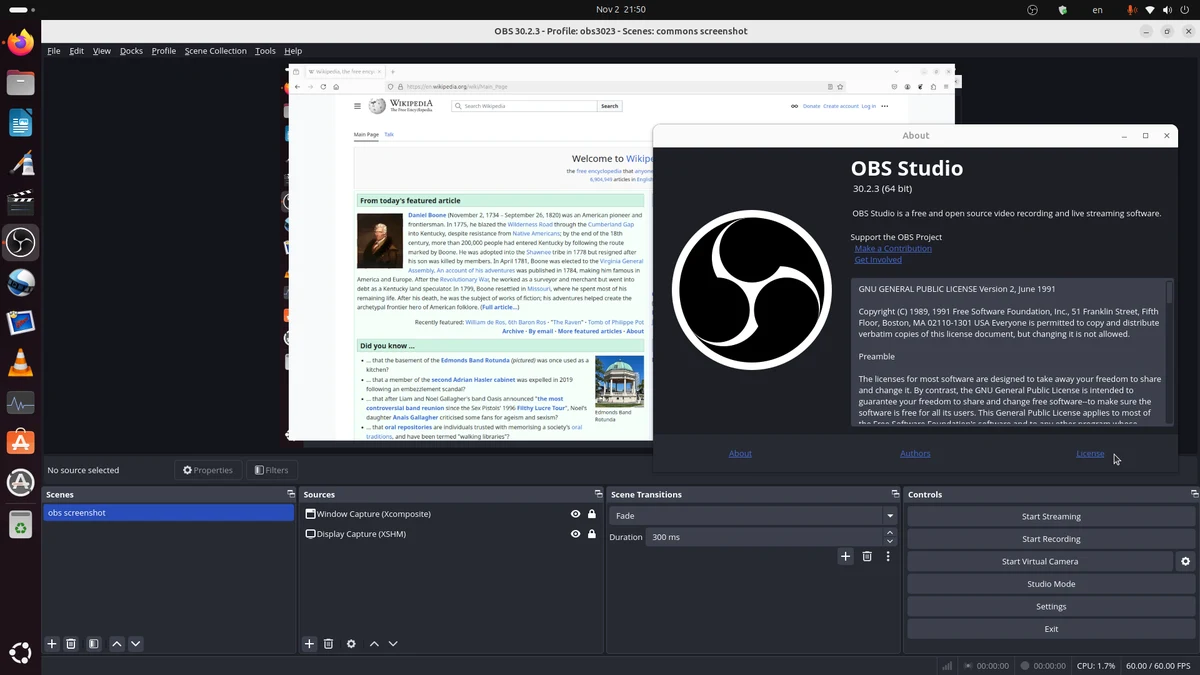
OBS lag and dropped frames while gaming almost always fall into one of three distinct categories, and each one has a completely different fix. Treating them as the same problem is why so many troubleshooting attempts fail — lowering your bitrate won’t help if the real issue is GPU-bound rendering lag, and upgrading your GPU won’t help if the real issue is your upload speed. The first step is figuring out exactly which type of frame loss you’re dealing with, and OBS actually tells you this directly if you know where to look.
Network Dropped Frames vs. Rendering Lag vs. Encoding Lag
OBS reports three separate categories of frame loss, and they show up in different places with different underlying causes:
- Network dropped frames happen when your internet connection can’t keep up with your stream’s bitrate, so OBS discards frames before they ever reach your streaming platform. This is purely a bandwidth/connection issue and has nothing to do with your PC’s rendering power — you could have a top-tier gaming rig and still see dropped frames if your upload speed can’t sustain your chosen bitrate.
- Frames missed due to rendering lag are visible as stutter in the OBS preview window itself, and they’re caused by your GPU (or sometimes CPU) not keeping up. If a frame takes longer than roughly 16.6 milliseconds to render at 60fps, OBS aborts it and logs it as rendering lag.
- Skipped frames due to encoding lag happen when encoding a frame takes longer than that same 16.6ms window. The cause differs depending on your encoder: it’s CPU overload if you’re using the software x264 encoder, and GPU overload if you’re using a hardware encoder like NVENC.
Rendering lag and encoding lag are closely linked — in a lot of cases, once you eliminate the rendering lag by reducing GPU load, the encoding lag clears up alongside it, since a hardware encoder shares the same GPU that’s also struggling to render your game. Mismatched resolutions or frame rates between your game, your OBS canvas, and your output settings can also generate both kinds of lag simultaneously, since OBS ends up doing extra scaling work on every single frame.
How to Diagnose Which One You Have
OBS makes this easy to check without guesswork. Open the Stats dock (View > Docks > Stats) while you’re recording or streaming. It shows three separate counters: Dropped Frames (network), Rendering (missed frames due to rendering lag), and Encoding (skipped frames due to encoding lag). Watch which counter climbs during a lag spike — that tells you exactly which fix path below applies. It’s common to see more than one counter rising at once, especially when rendering lag cascades into encoding lag on a hardware-encoded stream, since both draw from the same GPU resources. Leave the Stats dock open during a normal gaming session before you go live, so you have a baseline for what “normal” looks like on your system and can spot when something changes.
Fixing Network Dropped Frames
If the Dropped Frames counter is the one climbing, the problem is your connection, not your PC’s performance:
- Lower your bitrate so it’s comfortably under your actual measured upload speed — a good rule of thumb is staying at or below roughly 75% of your available upload bandwidth.
- Switch to a wired Ethernet connection if you’re currently on Wi-Fi, since Wi-Fi introduces variable latency and packet loss that a cable avoids almost entirely.
- Change your streaming server region in OBS’s stream settings — a server that’s geographically closer or less congested can reduce drops significantly, especially during peak hours.
- Check for other devices or apps hogging your bandwidth in the background (downloads, cloud backups, other streaming devices on the same network, or a large game update downloading in the background while you’re live).
Fixing Frames Missed Due to Rendering Lag
If the Rendering counter is climbing, your GPU (or occasionally CPU) can’t keep up with rendering both the game and OBS’s preview/composited scene:
- Update your GPU drivers — outdated drivers are a common, easily overlooked cause of rendering slowdowns, and GPU manufacturers frequently release driver updates specifically targeting streaming and capture performance.
- Disable Windows Game Bar and Game DVR, both of which add background GPU overhead even when not actively recording.
- Close overlays you don’t need — Discord’s overlay, GeForce Experience/Nvidia overlay, and other third-party overlays all add rendering overhead on top of your game and OBS.
- Lower your in-game graphics settings, particularly resolution and shadow/effects quality, since this directly reduces the GPU load OBS is competing against.
- Make sure your OBS canvas resolution, output resolution, and game resolution are aligned — feeding OBS a different resolution or frame rate than what it expects, including any unnecessary upscaling, creates extra rendering work that causes frame drops.
Fixing Skipped Frames Due to Encoding Lag
If the Encoding counter is climbing, the fix depends on which encoder you’re using:
If you’re on x264 (software/CPU encoding): your CPU is overloaded. Lower the x264 preset to “veryfast” or “superfast” (faster presets use less CPU at a small quality cost), reduce your output resolution, or lower your frame rate. If your CPU is consistently maxed out during gameplay alone, before OBS is even added, switching encoders is the better long-term fix rather than continuing to tweak x264 settings.
If you’re on NVENC or another hardware encoder: your GPU is overloaded, generally because the same GPU is being asked to render the game, run any in-game upscaling or overlay effects, and encode the stream simultaneously. Lower your output resolution or bitrate, and check the encoder’s preset — using a lighter preset trades a small amount of quality for meaningfully less GPU load.
Either way: hardware encoding generally offloads the encode process from your CPU to your GPU, which produces a smoother result on systems where the CPU is the bottleneck. If you’re currently on x264 and your CPU is pegged, switching to NVENC (or AMD/Intel’s equivalent) is usually the single most effective fix available, assuming your GPU supports it and isn’t itself already maxed out by the game.
Encoder-Specific Settings That Help
A few settings inside your encoder’s advanced options make a measurable difference:
- Disable Look-ahead and Psycho Visual Tuning in NVENC’s advanced output settings — both improve quality slightly but add encoding overhead that a struggling system can’t afford.
- Keep Max B-Frames at a moderate value (2 is a common default) rather than pushing it higher for marginal quality gains that most viewers won’t notice.
- For x264, avoid slower presets like “medium” or “slow” unless your CPU has clear headroom — these trade real performance for image quality improvements that are hard to notice during fast-paced gameplay footage, where motion tends to hide fine detail anyway.
- If you’re on an NVIDIA GPU, choosing a “Quality” or balanced preset rather than “Max Quality” is often the better tradeoff for live gaming streams, reserving the heaviest settings for local recordings where there’s no real-time deadline to hit.
Other Common Culprits Worth Checking
A few less obvious issues cause the same symptoms and are easy to miss:
- Background apps: browser tabs, chat clients, and update services running in the background all compete for the same CPU/GPU resources OBS needs, and it’s easy to forget how many of these are quietly open.
- Windows Updates running silently: these can spike CPU and disk usage mid-stream without any visible warning, which shows up as a sudden, unexplained lag spike that clears up on its own once the update finishes.
- Thermal throttling: if your laptop or PC is overheating, both your CPU and GPU will clock down automatically, which shows up as sudden, unpredictable rendering and encoding lag rather than a steady problem. Dust buildup and blocked vents are common causes on machines that have been running fine for months before suddenly starting to lag.
- Slow storage for local recording: if you’re recording locally rather than just streaming, a slow hard drive can’t write frames fast enough, which shows up as its own kind of stutter separate from the network/rendering/encoding categories above, and is usually fixed by recording to an SSD instead of a traditional hard drive.
When to Consider a Hardware Upgrade
If you’ve worked through every setting above and rendering or encoding lag is still constant rather than occasional, it may genuinely be a hardware ceiling rather than a configuration problem. A CPU or GPU that’s already near 100% usage just running the game, with no streaming software open at all, doesn’t have spare capacity for OBS to draw from no matter how the settings are tuned. In that case, the more realistic fixes are lowering your output resolution and bitrate further to reduce the load OBS demands, or accepting that a hardware upgrade — more commonly a GPU with a capable NVENC encoder than a CPU — is what actually solves it long-term.
Conclusion
Fixing OBS lag and dropped frames starts with identifying which of the three problems you actually have using OBS’s Stats dock: network dropped frames call for a bitrate cut or a wired connection, rendering lag calls for reducing GPU load through driver updates and disabled overlays, and encoding lag calls for either a lighter encoder preset or switching from x264 to a hardware encoder like NVENC. Diagnose first, then apply the matching fix — adjusting the wrong setting is why “just lower your bitrate” doesn’t always work.