
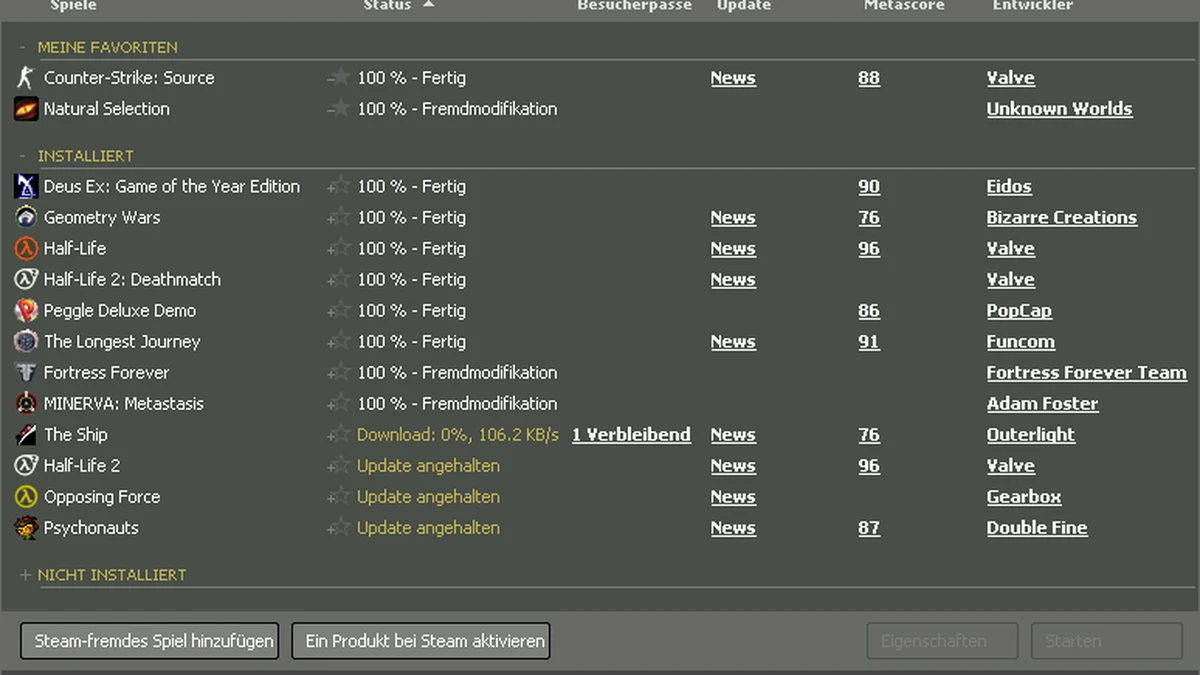
When Steam won’t open, or a specific game shows “Running” in your library but never actually launches, the cause is almost always one of a handful of usual suspects: a stuck background process, a corrupted local file, a permissions conflict, or a third-party overlay getting in the way. Steam launch failures rarely require a full reinstall of your games — most are fixed in a few minutes by working through the checks below in order, from simplest to most involved.
1. Restart Steam and Your PC Properly
This sounds obvious, but it’s worth doing correctly rather than just closing the window. Closing Steam’s main window often just minimizes it to the system tray, leaving background processes running. Open Task Manager (Ctrl+Shift+Esc), go to the Details tab, and end any steam.exe, steamwebhelper.exe, or steamservice.exe processes you see. Then restart your PC — not just Steam — since a stuck process, a locked file, or a corrupted temporary state often only fully clears on reboot.
2. Run Steam as Administrator
Permission conflicts are a common cause of Steam failing to launch or games failing to start from within it, especially on systems with User Account Control set to a stricter level, or where Steam is installed outside the default Program Files location. Right-click the Steam shortcut and select “Run as administrator.” If this fixes the problem, you can make it permanent: right-click the shortcut, go to Properties, open the Compatibility tab, and check “Run this program as an administrator” so you don’t have to do it manually every time.
3. Check for Conflicting Background Processes
Discord’s overlay service and Razer Synapse have both been repeatedly flagged in Steam community troubleshooting threads as culprits for games that show “Running” in the library but never actually open a window. Other common conflicts come from RGB lighting software (Corsair iCUE, Logitech G Hub), capture software (OBS, GeForce Experience overlay), and older antivirus suites with aggressive behavior monitoring.
To isolate the problem: 1. Close Discord, RGB software, and any overlay or capture tools. 2. Try launching the game again. 3. If it works, re-enable the closed programs one at a time to identify which one was conflicting. 4. Once identified, check that program’s settings for an overlay or in-game feature toggle and disable it rather than closing the whole app every time.
4. Disable the Steam Overlay Itself
The Steam overlay can itself be the source of a launch failure, particularly after a Steam client update. To test this, go to Steam > Settings > In-Game, and uncheck “Enable the Steam Overlay while in-game.” You can also disable it per-game by right-clicking the game in your library, selecting Properties, and toggling the overlay setting there. If the game launches fine with the overlay off, you’ve found your issue — you can either leave it disabled or wait for a Steam client update that resolves the conflict.
5. Verify Integrity of Game Files
This checks your local game installation against Steam’s records and automatically re-downloads anything that’s missing or corrupted — a very common cause of a specific game refusing to launch while Steam itself works fine.
- Open your Steam Library.
- Right-click the problem game and select Properties.
- Click the “Installed Files” tab.
- Click “Verify integrity of game files.”
- Wait for the process to complete — this typically takes one to five minutes depending on the game’s size.
Steam will report how many files were repaired. Note that if you use mods, this process can overwrite modded files with the originals, so you may need to reinstall mods afterward.
6. Clear Steam’s Download Cache
A corrupted download cache can prevent Steam from starting properly or cause games to fail mid-launch. Go to Steam > Settings > Downloads, and click “Clear Download Cache.” Confirm when prompted. Steam will close and ask you to log back in — this is expected and doesn’t affect your installed games or library.
7. Fix a Stuck or Crashing Steam Client Bootstrapper
If Steam itself won’t open at all and you see a “Steam Client Bootstrapper Not Responding” message, this points to a problem with the launcher process itself rather than a specific game. Try these in order:
- Clear the download cache as described above — this resolves a large share of bootstrapper issues caused by corrupted update files.
- Reset your network stack. Open Command Prompt or PowerShell as administrator and run
netsh winsock reset, then restart your PC. This has resolved bootstrapper hangs for many users experiencing connection-related stalls. - Check your local config file size. If
Steam\userdata\[your Steam ID]\config\localconfig.vdfhas grown unusually large, it can cause the bootstrapper to hang. Deleting it resets your Steam client settings (chat preferences, per-game launch options) but can resolve persistent startup failures. - Run Steam as administrator, per the steps in section 2, since bootstrapper failures are sometimes permission-related.
8. Check Your Antivirus and Firewall
Security software occasionally flags Steam’s executables or a specific game’s anti-cheat component as suspicious, silently blocking them from running. Check your antivirus’s quarantine or blocked-items log for anything related to Steam or the game in question, and add exceptions for your Steam install folder if you find entries there. Also confirm Windows Firewall isn’t blocking Steam under Control Panel > System and Security > Windows Defender Firewall > Allow an app through firewall.
9. Update Graphics Drivers and Windows
Outdated GPU drivers are a frequent cause of games launching, showing a black screen, and then crashing back to desktop — which can look identical to a game “not launching” from Steam’s perspective. Update your graphics drivers directly from NVIDIA, AMD, or Intel, and run Windows Update to check for pending OS updates, since Steam and many games depend on current system components (DirectX, Visual C++ redistributables) that Windows Update keeps current.
10. Reinstall Steam as a Last Resort
If nothing above resolves the issue, reinstalling the Steam client itself (not your games) is the next step. Uninstall Steam through Windows’ “Apps & Features” settings, then download a fresh installer from Steam’s official site and reinstall. Your games remain on disk in the SteamApps folder and don’t need to be re-downloaded, provided you install Steam to the same drive and let it detect your existing library folder during setup.
Conclusion
Most Steam launch failures come down to a stuck background process, a permissions conflict, a corrupted local file, or another program’s overlay stepping on Steam’s. Work through the fixes in order: restart properly and run as administrator first, then check for conflicting overlay software, verify game files, clear the download cache, and only reinstall Steam itself if everything else fails. This sequence resolves the large majority of “Steam not opening” and “game not launching” reports without needing to touch your actual game installations.