
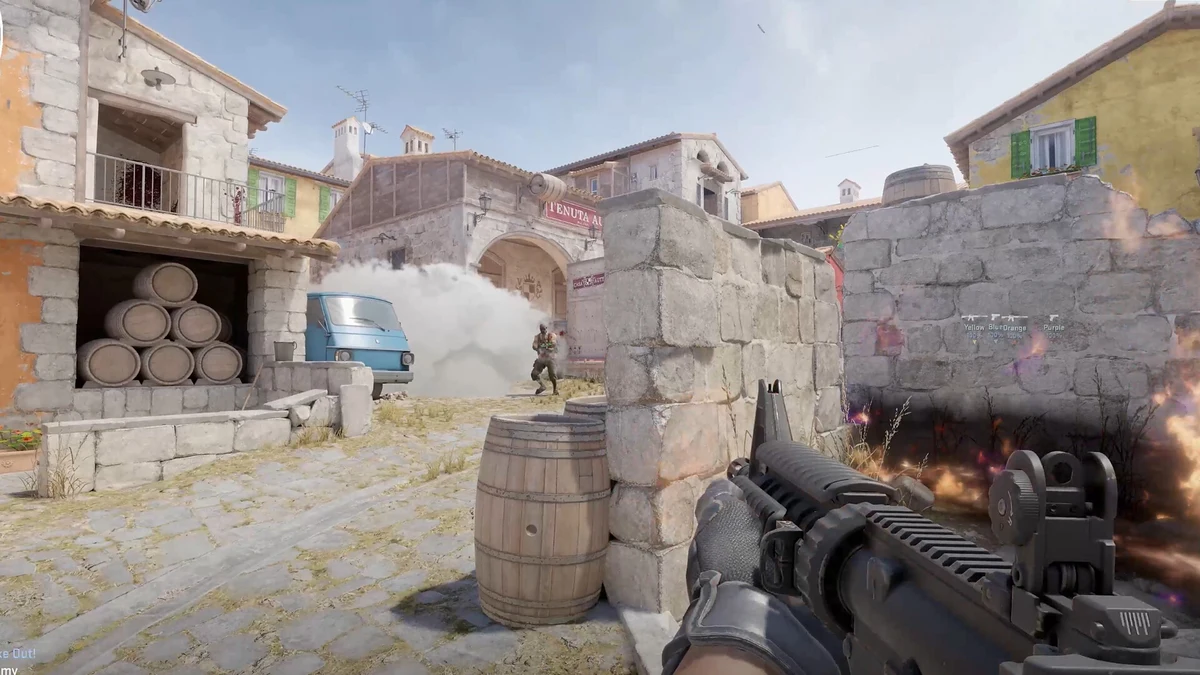
Ask ten CS2 players for their “best” settings and you’ll get ten different answers — and honestly, most of them will work fine. What actually separates a good setup from a bad one isn’t copying a pro’s exact numbers, it’s understanding why those numbers exist so you can find your own version. This guide breaks down sensitivity and DPI, crosshair customization, and video settings the way a competitive player should think about them, not just a list of numbers to paste into your config.
If you’re still getting comfortable with the game itself, it’s worth reading our CS2 beginner’s guide first — settings matter a lot less than fundamentals when you’re just starting out. Once you’ve got the basics down, this is where you start shaving off the small inefficiencies. And for the full picture of CS2 beyond your config file, our complete CS2 guide is the place to start.
Sensitivity and DPI Basics
Sensitivity is one of the most over-discussed and under-understood settings in competitive shooters. The actual number matters far less than consistency — the goal is a sensitivity you can use to flick to a target and land your crosshair close enough that a small correction finishes the job, every time, without thinking about it.
DPI (dots per inch) is your mouse’s raw hardware sensitivity — how many pixels the cursor moves per inch of physical mouse movement. Most competitive players settle somewhere between 400 and 800 DPI, not because higher DPI is inherently worse, but because lower DPI values give your mouse’s sensor more physical distance to work with, which tends to produce smoother, more consistent tracking on most sensors.
In-game sensitivity then multiplies with your DPI to produce your effective sensitivity, usually described in cm/360 — the physical distance your mouse needs to travel across your mousepad to do a full 360-degree turn. This is the number worth thinking about instead of raw in-game sensitivity, because it’s comparable across different DPI setups.
A rough framework for new and intermediate players:
- 30-40 cm/360 — Common among players who prioritize fast flicks and close-range dueling.
- 40-60 cm/360 — The most common range among pro and high-level players; balances flicking speed with precision for spray control.
- 60+ cm/360 — Favored by players who value fine-grained precision for long-range spray transfers and pixel-perfect tracking, at some cost to raw flick speed.
There’s no universally “correct” number here. The best approach is to pick something in the mid-range, spend real practice time with it in Aim Botz or Deathmatch, and adjust in small increments rather than overhauling your sensitivity every few days — muscle memory needs consistency to form.
Crosshair Customization: Codes and Philosophy
CS2’s crosshair editor is deep enough to build almost any style you can imagine, and the in-game menu generates a shareable export code any time you save changes, which you can paste directly into your config or share with teammates.
The core settings worth understanding:
| Setting | What It Controls | Common Competitive Range |
|---|---|---|
| Style | Overall shape (classic, dynamic, or classic static) | Static (Style 4) is the most popular for consistency |
| Size / Length | How long each crosshair line is | Short to medium — long enough to see, short enough not to obscure targets |
| Thickness | How wide each line is | Thin to medium; thinner lines aid precision, thicker lines aid visibility |
| Gap | Distance between the center point and each line | Negative values (tighter gap) are most common competitively |
| Color | Crosshair color | Cyan is the most popular pro color, followed by green, since both contrast well against most CS2 maps |
| Outline | A dark border around each line | Usually enabled — it keeps the crosshair visible against bright or busy backgrounds |
| Center Dot | A dot in the middle of the crosshair | Personal preference — helps some players with precision, distracts others during movement |
The philosophy behind these choices matters more than copying a specific code. A static crosshair (rather than one that expands with movement or firing) gives you a fixed, predictable reference point, which is why the vast majority of competitive players use it. A tighter gap and thinner lines favor precision at the cost of visibility, while a slightly larger, thicker crosshair is easier to track a moving target with — which is why some pro players known for flick-heavy playstyles run noticeably bigger crosshairs than the “standard” competitive look.
If you want a starting point rather than building from scratch, a common baseline is size 2, thickness 0.5-1, gap -2 to -3, cyan color, with outline enabled and no center dot. From there, spend a few sessions adjusting size and gap slightly until target acquisition feels natural, and don’t be afraid to add a dot back in if you find it helps your precision on stationary targets.
Best Video Settings for Competitive Play
CS2’s Source 2 engine looks considerably better than the old CS:GO engine out of the box, but most of that visual fidelity is optional overhead you don’t need for competitive play. The general competitive philosophy is simple: prioritize frame rate consistency and visibility over visual polish.
Settings worth adjusting:
- Resolution — Native resolution on modern monitors generally looks and performs best; stretched or lower resolutions were a CS:GO-era workaround that’s largely unnecessary on CS2’s engine, though some players still prefer 4:3 stretched for personal comfort with model sizes.
- Global Shadow Quality / Model Detail — Lowering these can slightly improve visibility of enemy models against cluttered backgrounds while boosting FPS.
- Effects Detail and Shader Detail — Turning these down reduces visual clutter from smoke, fire, and explosion effects, which can genuinely help you track enemies through chaotic fights.
- Multicore Rendering — Should stay enabled; it distributes rendering load across CPU cores for smoother frame times.
- NVIDIA Reflex (or equivalent low-latency mode) — Reduces input lag between your mouse movement and what renders on screen; enable it if your GPU supports it.
- FPS cap — Uncapped is fine if your system holds a stable high frame rate, but a competitive player is generally better off with a slightly lower, rock-solid frame rate than a higher one that fluctuates, since consistency helps muscle memory more than peak numbers.
- Boost Player Contrast — A CS2-specific setting that increases contrast on enemy players against the background; most competitive players leave this on.
The overarching goal across every visual setting is the same: strip out anything that adds visual noise without adding useful information, and keep your frame rate as stable as your hardware allows.
Mouse and Monitor Considerations
Settings only take you so far if your hardware is working against you. A mouse that doesn’t fit your grip style or hand size makes consistent sensitivity nearly impossible to maintain, and a monitor with a low or inconsistent refresh rate limits how much of your reaction time actually reaches the screen. If you’re due for an upgrade, our guide on how to choose a gaming mouse that actually fits your playstyle and our gaming monitor buying guide covering refresh rate, resolution, and panel type are both worth a read before you spend money chasing settings that a better setup would solve for free.
Frequently Asked Questions
Q: What DPI do most CS2 pros use? Most competitive players use somewhere between 400 and 800 DPI, with in-game sensitivity adjusted to reach their preferred cm/360. The specific number matters less than pairing it with a consistent, comfortable mouse movement.
Q: Is a lower sensitivity always better for CS2? Not necessarily. Lower sensitivity generally aids precision and spray control but can slow down your ability to react to enemies appearing at your flanks. The right sensitivity is one you can consistently land shots with, not the lowest number you can tolerate.
Q: What crosshair color is best in CS2? Cyan is the most widely used competitive color because it contrasts clearly against most map surfaces without blending into fire effects or team outlines. Green and yellow are also popular alternatives.
Q: Should I use stretched resolution in CS2? It’s largely a personal preference carried over from CS:GO. Native resolution generally looks sharper and is what most current pros use, but some players still prefer stretched visuals for slightly larger-looking player models.
Q: Do video settings actually affect performance in ranked matches? Yes, meaningfully. Lowering effects and shadow detail reduces visual clutter during grenades and gunfights while improving frame rate stability, both of which have a real, measurable impact on your ability to track and react to enemies.
The Bottom Line
There’s no single “correct” settings file that will instantly make you better at CS2 — what matters is understanding the reasoning behind sensitivity, crosshair, and video settings well enough to build a setup that fits how you actually play. Start from the baselines in this guide, give each change a real trial period before judging it, and adjust deliberately rather than chasing whatever a pro player happens to be using this week. For everything else CS2, including ranks, maps, and the current competitive scene, our complete CS2 guide has you covered, and our CS2 maps guide is a great next stop once your settings feel dialed in.